Create Your Key
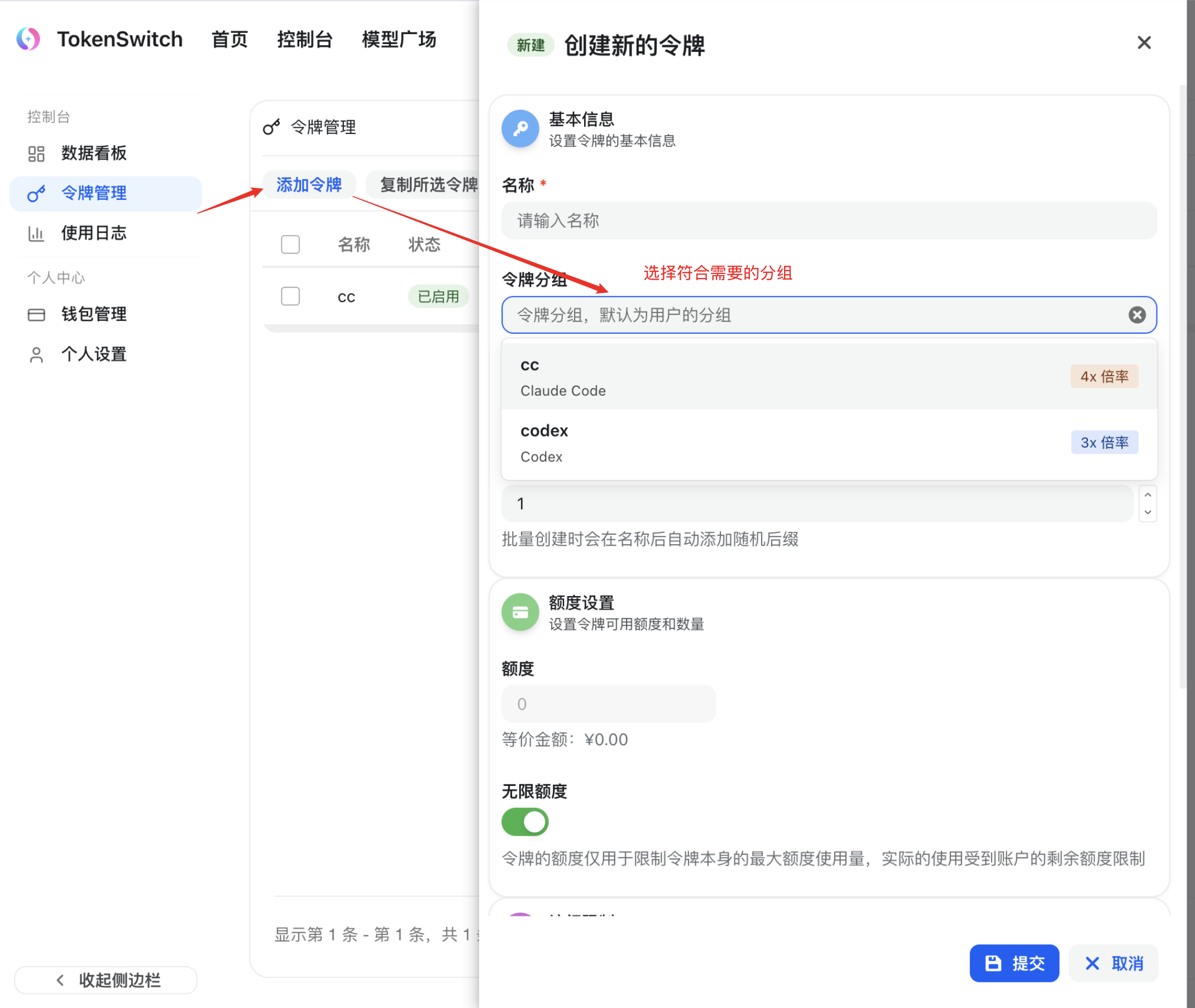
After registering and logging in, click to create your own Key.
Steps
- Log in to the TokenSwitch platform
- Go to the console
- Click the "Create Key" button
- Configure the Key parameters
- Save and copy the Key
Key Types
Choose the token group that matches the tool you want to use:
Claude Code Token
For the Claude Code CLI tool. Supports Claude series models.
CodeX Token
For the Codex tool. Supports OpenAI series models.
Important
Different tools require different token groups. Make sure to create the correct Key for your needs.
Key Configuration
Name
Give your Key a recognizable name to make it easy to manage multiple Keys.
Token Group
See available token groups.
Quota Limit
You can set:
- Unlimited quota (recommended)
- Custom quota limit
Expiration
Set an expiration date for the Key, or choose "Never Expire".
Security Tips
Security Warning
- Do not share your Key with others
- Do not commit your Key to a code repository
- Do not display your Key in public
- Store your Key using environment variables or config files
- Rotate your Key regularly for better security
Save Your Key
After creation, save your Key immediately:
bash
# Example Key (replace with your actual Key)
sk-xxxxxxxxxxxxxxxxxxxxxxxxxxxxxxxx